
Over the past months, several engineers have reached out to ask about local development workflows. In our 1:1 conversations, the core concern is rarely about the capabilities of cloud-based APIs: it is about codebase privacy, our reliance on third-party services, and a shared curiosity to see what can run on our own hardware. Running models locally means we do not have to depend on subscriptions or deal with provider quotas.
To address this, I have spent time tuning my own workstation setup. None of this is cheap: my own machine is a 16-inch M5 Pro Mac with 48 GB of unified memory. This capacity gives me the breathing room to run highly capable open models like Qwen or Gemma, without locking up the rest of my development tools. While running both simultaneously is out of the question, executing one at a time works seamlessly.
Though, running open-weight models locally warrants caution: if a model can execute code or interact with the operating system, it can perform destructive actions on your machine. We recommend running local agentic tools inside containerized sandboxes to protect your host system. We plan on detailing the core concepts behind local execution and the open-source projects that bring it to life.
Running Your First Local Model
We'll start by running a single model on your machine. If you want an accessible entry point with a solid UI, LM Studio is the easiest way to test local models. You do not have to write configuration files or manage services in the terminal.
While this guide focuses on macOS, the setup is similar on other operating systems. If you are developing on a different platform, several resources cover local setups for Windows and Linux. For instance: Windows developers can read the official announcement on Ollama for Windows, and Linux users can follow the Ollama Linux documentation to configure GPU acceleration and service management.
Running a Local Model
We start by downloading the LM Studio desktop application. Once installed, open the application, use the search bar to locate a lightweight, optimized community model like lmstudio-community/gemma-4-E2B-it-MLX-4bit, and click download to pull the model files onto your workstation.
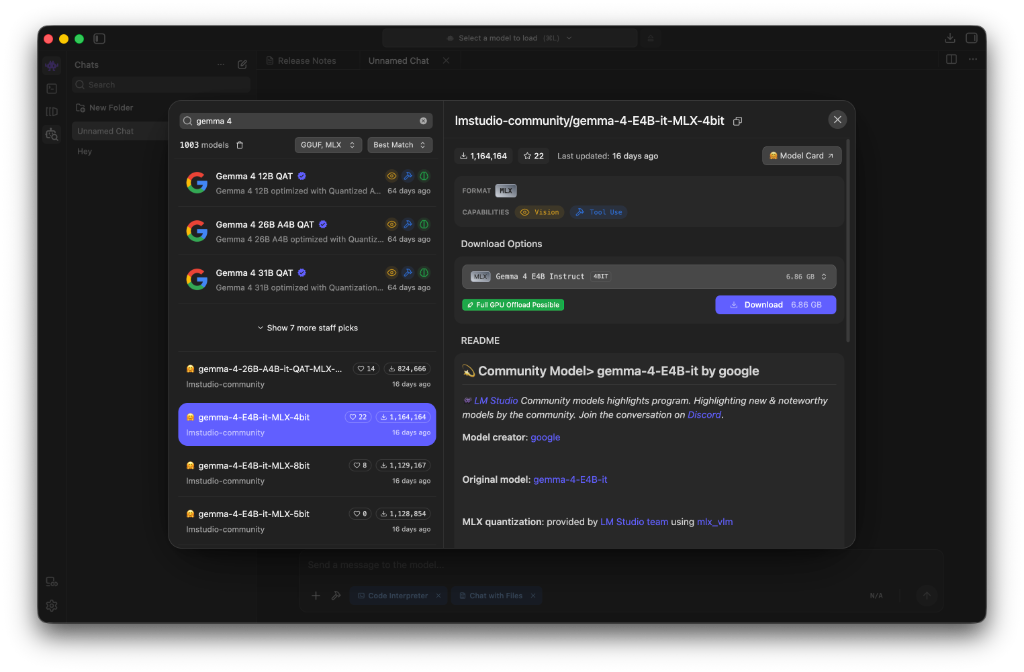
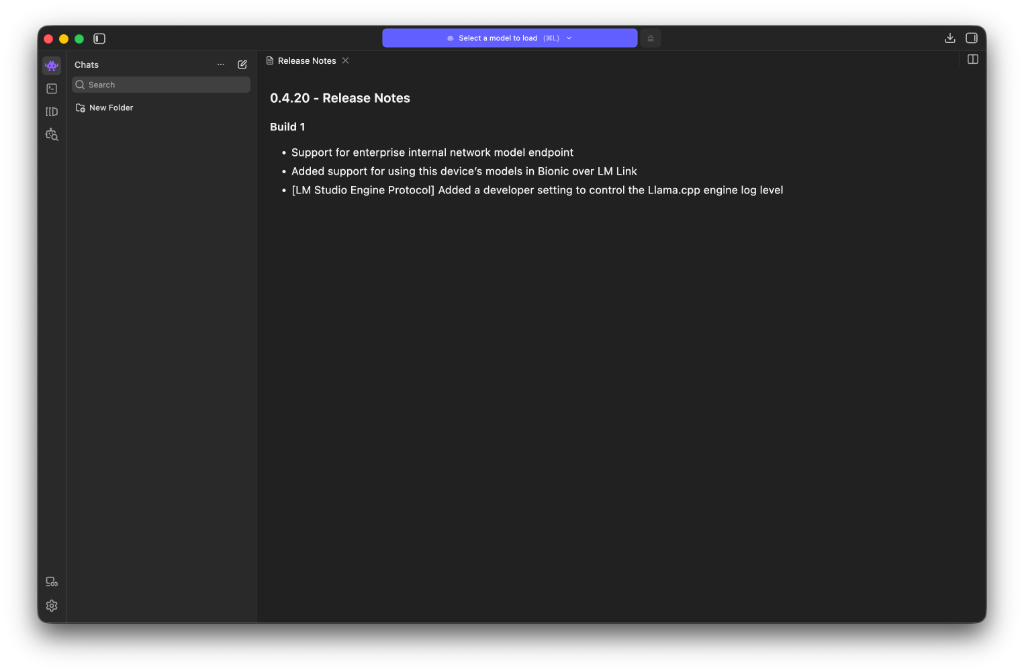
Once the download completes, navigate to the chat interface, select the model from the top dropdown menu, and start a chat. Typing "hello!" is enough to verify the setup. If your workstation runs low on unified memory, you will see a system warning. In this scenario, reducing the context size in the configuration settings will lower the memory allocation at launch.
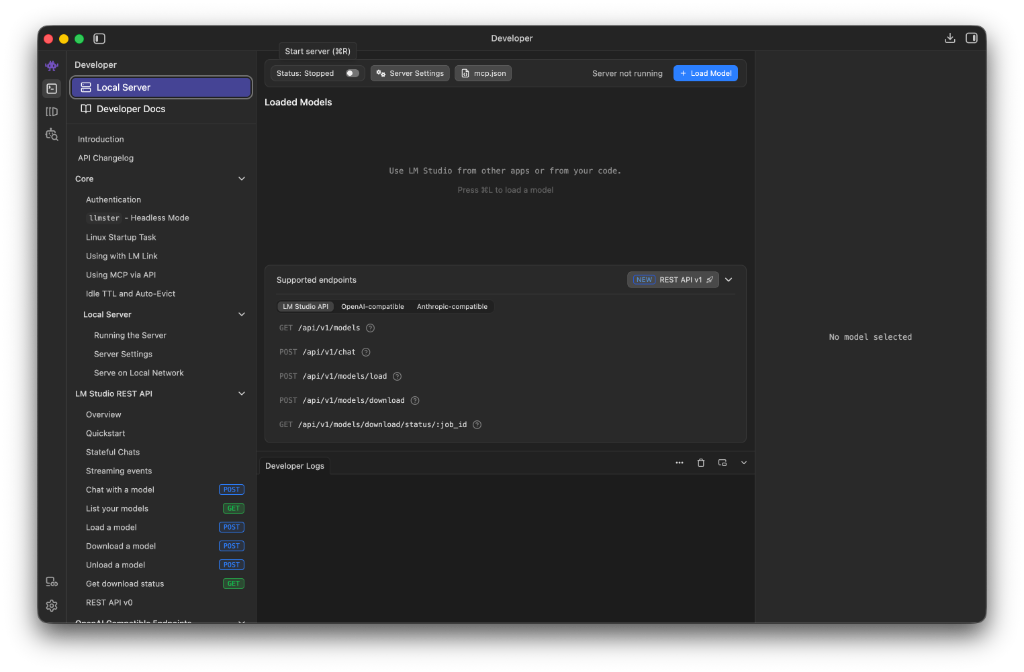
To use the model as a coding assistant in the terminal, we need to spin up the local API gateway. Click the Developer icon on the left sidebar, select "Local Server", enable the server toggle, and load the model.
Terminal Integration Through OpenCode
Once the local server is running, we can integrate it with a command-line developer utility like OpenCode. You can install OpenCode by running the following command in your terminal:
curl -fsSL https://opencode.ai/install | bashAfter the installation completes, modify the configuration file at ~/.config/opencode/opencode.jsonc to route requests to your local LM Studio instance:
{
  "provider": {
    "lmstudio": {
      "baseURL": "http://localhost:1234/v1",
      "apiKey": "lmstudio"
    }
  },
  "model": "lmstudio-community/gemma-4-E2B-it-MLX-4bit"
}
Once saved, launch opencode in your terminal and say hello. When you watch the model generate a response, you have achieved a major milestone: a highly capable neural network running entirely offline on your Mac. There are no subscription fees, no network latency, and no code leaving your workstation.
While a lightweight model like gemma-4-E2B-it-MLX-4bit is useful for testing your setup, it will not be great at complex coding tasks. For production workflows, you will eventually want to load larger open-weight models like Qwen or Gemma 4 31B to handle deep architectural reasoning. With this baseline established, we can explore the core mechanisms and settings that control how these models run.
Key Concepts
Running advanced setups requires understanding a few core concepts. Modern local models are built on the Transformer architecture: a design that uses self-attention mechanisms to process tokens in relation to all other tokens in a sequence simultaneously. This parallel processing capability is what allows models to capture complex code syntax and context. That said, keeping billions of active parameters in memory requires substantial hardware resources.
To run these models on a standard developer machine, we rely on quantization. Quantization is a compression technique that maps high-precision floating-point weights (typically 16-bit or 32-bit) to lower-precision representations (like 4-bit or 8-bit integers). While this reduces the overall file size and memory footprint, the model retains most of its original reasoning capability. As a result, we can run a 7-billion parameter model in under 6 GB of RAM, instead of the 14 GB it would require at full precision.
There are other variables that can be controlled when a model is launched, such as the K/V cache size and temperature. For instance: adjusting the temperature lets you control whether the output is deterministic or creative. Some models have options for enabling thinking processes, and you will learn to tune these parameters as you experiment.
We also need to consider the format of the model files. The industry has standard formats that optimize how weights are loaded and processed:
- GGUF: a file format designed specifically for fast inference on consumer CPUs and GPUs. It packs the model metadata, hyperparameters, and tensor weights into a single file, making it highly portable.
- MLX: a format optimized specifically for Apple's unified memory architecture. This allows the GPU to access the model weights directly, bypass translation layers, and maximize token generation speed.
Choosing the right format and quantization level is critical. When selecting a model, we generally balance model size against available RAM:
- 4-bit Quantization (e.g. Q4_K_M): provides the optimal balance of speed and intelligence. It reduces memory usage by roughly 70% while maintaining near-baseline performance.
- 8-bit Quantization (e.g. Q8_0): provides slightly higher precision for complex coding tasks. However, it requires double the memory footprint and increases processing latency.
Hardware-Optimized Inference: Ollama and MLX
If you prefer a lightweight utility that runs in the background, Ollama is the standard for command-line model management. Ollama runs as a background service and exposes a clean CLI to fetch and run models. Because it is highly optimized for Apple Silicon, it handles the allocation of unified memory efficiently, allowing the CPU and GPU to share the model weights without redundant copies.
To get the absolute best performance on a Mac, we can combine Ollama with MLX models. MLX is an open-source machine learning framework developed by Apple specifically for Apple Silicon. Models compiled for MLX are fully optimized for unified memory: they use Metal Performance Shaders to speed up matrix multiplication. This optimization dramatically increases token generation speeds, rendering local models virtually instantaneous.
Unified memory is the secret weapon of Apple Silicon. Unlike traditional PCs where the CPU and GPU have separate memory pools, Macs share a single block of RAM. This means a 48 GB Mac can allocate up to 36 GB directly to a model's weights. The GPU processes these weights without copying them over a slow PCIe bus.
Unified memory is the secret weapon of Apple Silicon, allowing the GPU to process model weights directly without copying them over a slow PCIe bus.
Memory Management and Performance Tuning
Running models locally eventually runs into physical constraints: when a model's size exceeds your free unified memory, macOS relies on swap memory on the SSD. This transition causes immediate performance degradation: token generation speeds drop from dozens of tokens per second to a crawl. Avoiding swap means keeping an eye on unified memory pressure: a quick check in Activity Monitor or a terminal utility will show if you are pushing the system too hard.
We can also tune our configurations to stay within these boundaries. For instance: reducing the context window from 32,000 tokens to 8,000 tokens significantly cuts down memory usage during generation. The K/V cache stores past tokens to speed up multi-turn conversations, but a large cache can quickly consume several gigabytes of RAM. Keeping these configurations tight ensures the model remains fast without locking up the machine.
Open Models and Where to Find Them: Hugging Face
For locating quantized, MLX, and open-weight models, Hugging Face remains the central registry. New models are released daily, and the open-source community is highly active in optimizing them for consumer hardware.
When downloading files, look for model names containing GGUF or MLX tags. By selecting the right quantization level on Hugging Face, we can guarantee that the model fits within our workstation's memory limits. Running models locally is no longer just a hobbyist experiment: it is a practical path to scaling developer velocity on our own terms.